
Find answers to common queries or know different functionalities
LOGIN
How can I Login at RxOne Provider Portal?
You can login at RxOne Provider Portal using your registered email and password through the link: https://www.provider.rxone.app/user/login
Please make sure you have signed up and confirmed your mail ID before Login.
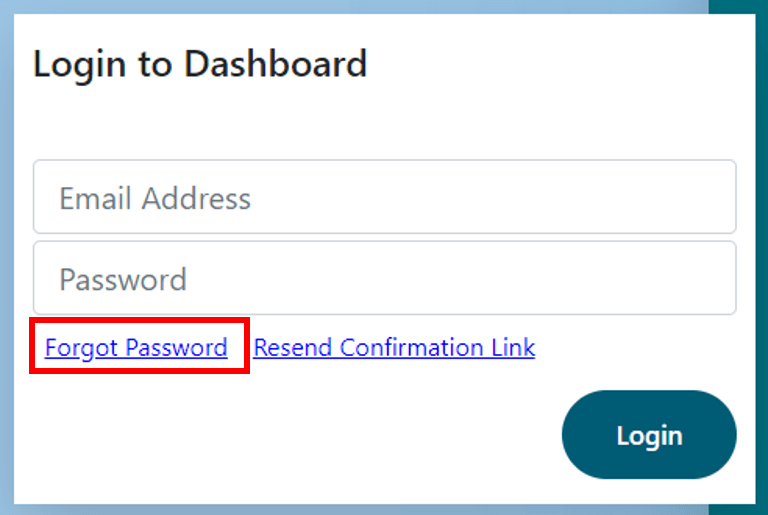
I have forgot my password, how can I request a temporary password?
You can click on “Forgot Password” link on Login Page and enter your registered email ID to request a temporary password.
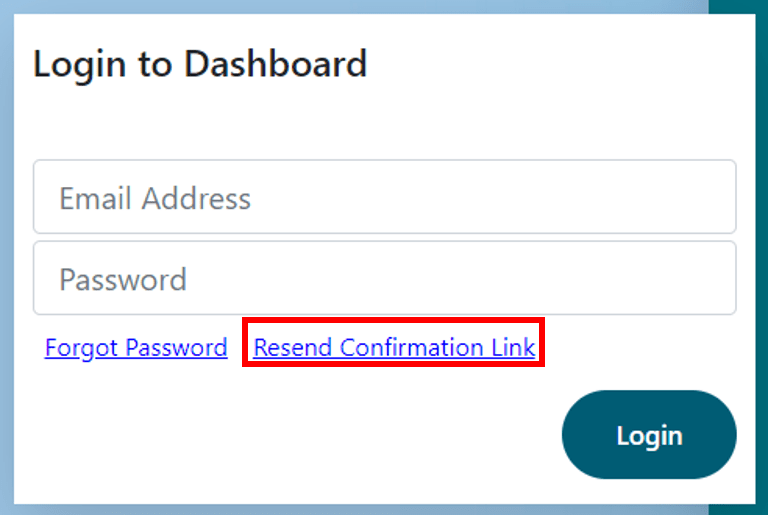
How can I request a new confirmation link, if old confirmation link is expired?
You can click on “Resend Confirmation Link” on Login Page and enter your registered email ID to request a new confirmation link.
Dashboard
Once you Login, you would be routed to the Provider Dashboard. The provider dashboard has various features, which helps you to manage your Digital Facility (Clinic/Hospital) with ease.

What are the steps to setup Virtual Hospital/Clinic or Digital Facility?
A Virtual Hospital/Clinic or Digital Facility can be created by following steps:
- Complete KYC to Activate Account
- Go to Facilities >> Facilities >> Click on “Add Facility” and fill Facility registration form.
- Once facility is registered, RxOne team will review the details submitted and approve registration.
- Once Facility is Approved, go to Doctors >> Doctors >> Click on “Add Doctor” and follow steps to complete doctor’s registration
- Once Doctor is successfully registered s/he will receive the notification with URL to Login and Confirm the registration.
- Once Doctor has Login for first time, the Registration Status will be marked “Completed” for Doctor
- Now you can share the unique link or QR for the Care portal with Patients to book appointments and avail other services.
How do I Activate the Account?
Provider portal’s various features are available once Account is Activated for user.
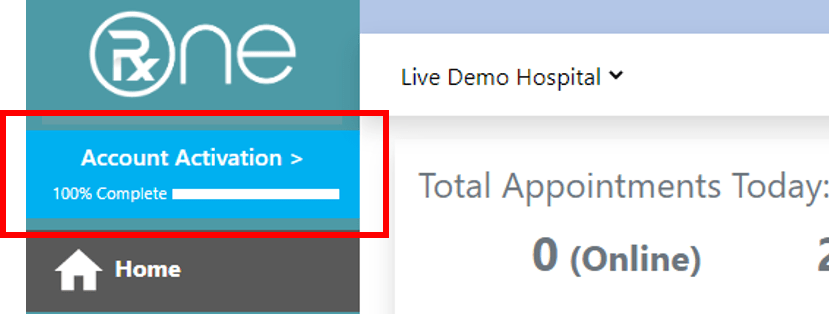
Account can be activated once KYC is reviewed and approved by RxOne Team. A Facility Owner or Staff can complete the KYC form and submit for KYC Review. Once submitted Account Activation bar will show the progress of Account Activation. Once KYC Review is all completed, “Account Activation” will show full bar indicating KYC completion and Account Activation.
KYC form can be accessed by clicking on “Account Activation” link.
 Health insights