
My Appointments
“My Appointments” section/tab includes all the features/services required for booking/managing your Consultation Appointments
How can I see my scheduled appointment with doctor?
Once you login, by default you will land to “My Appointments” section, where you can see all your past appointments (10 Days) and upcoming appointments.
How can I see latest appointment booked by me?
Once you have booked the appointment and paid the fee, the confirmed appointment will automatically reflected in the “My Appointments” section. In case appointments are not visible, you can click “Refresh” button  to fetch the appointments.
How can I book doctor’s consultation appointment?
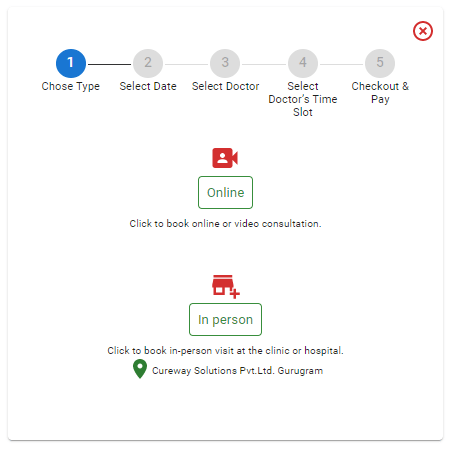
Click on  to start booking doctor’s appointment. Once you click on “Book Appointment” add button, it will open below interface, which will guide you through the process of booking the appointment.
How can I book In-Person (at Clinic/Hospital/Facility) appointment?
Both In-Person or Online (Video) appointments can be booked using same appointment booking interface. Once you open appointment booking interface, in Step-1 (Chose Type) you can click on “In Person” to select a In-Person appointment.
How can I book a Follow-up appointment?
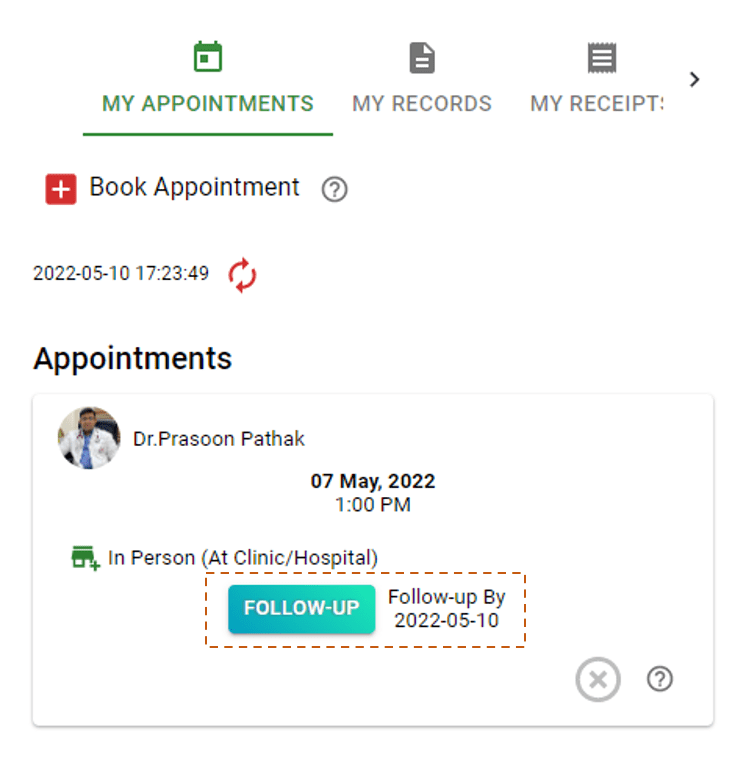
If Doctor has allowed a Follow-up, one Follow-up appointment can be booked against the current confirmed appointment for No Charge. In case Doctor has allowed follow up, s/he would enable this in Doctor’s Portal and you would see “Follow-Up” button in your appointment card like below. Please note follow-up appointment can be booked till the “Follow-up By” date.
How can I cancel an appointment?
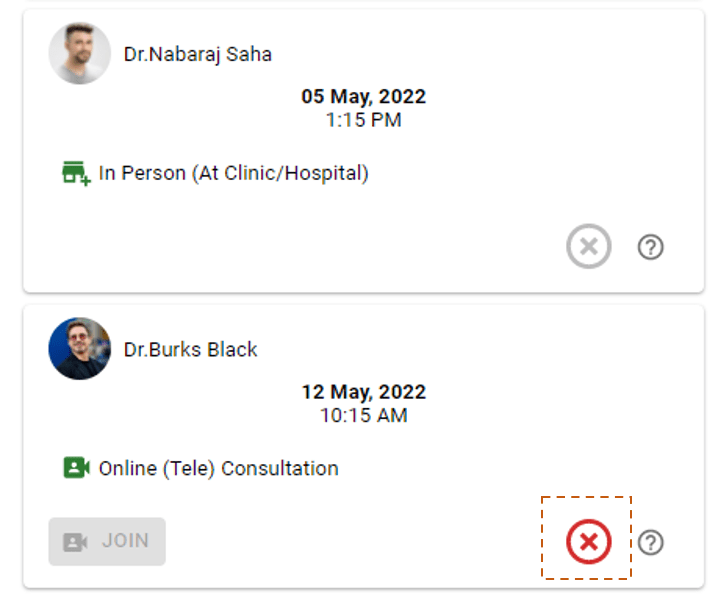
A confirmed appointment can be cancelled, 3 Hrs. prior to the scheduled time. To cancel the appointment click on cross (X) button. Please note we need to deduct 2.90% processing fee from the refunds.
How can I join the “Online” (Video) consultation?
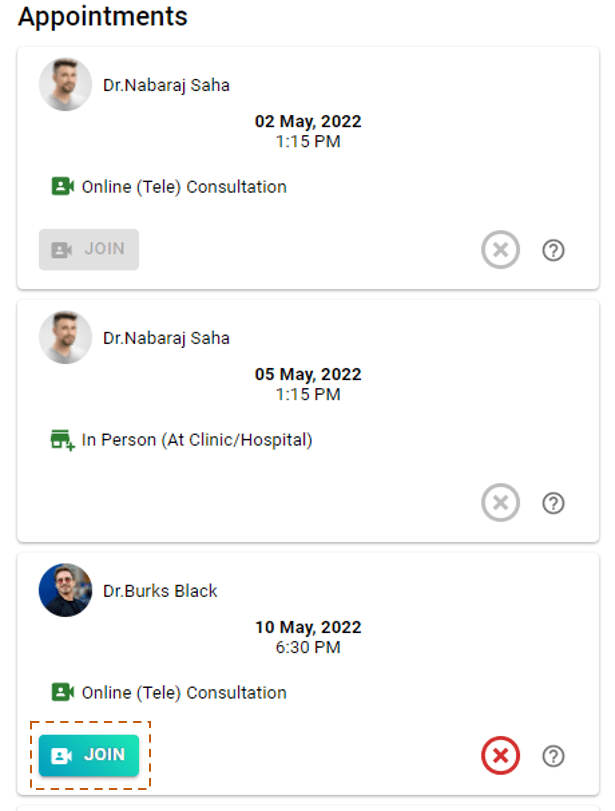
You can join video call by clicking “Join” button on the appointment card at the appointment scheduled time only. Join button will be active only for the Online appointments on the current date.
My Records
Using “My Records” section, you can manage your medical records like Prescriptions, Lab Reports, Hospital Records etc.
How can I upload my Medical Record?
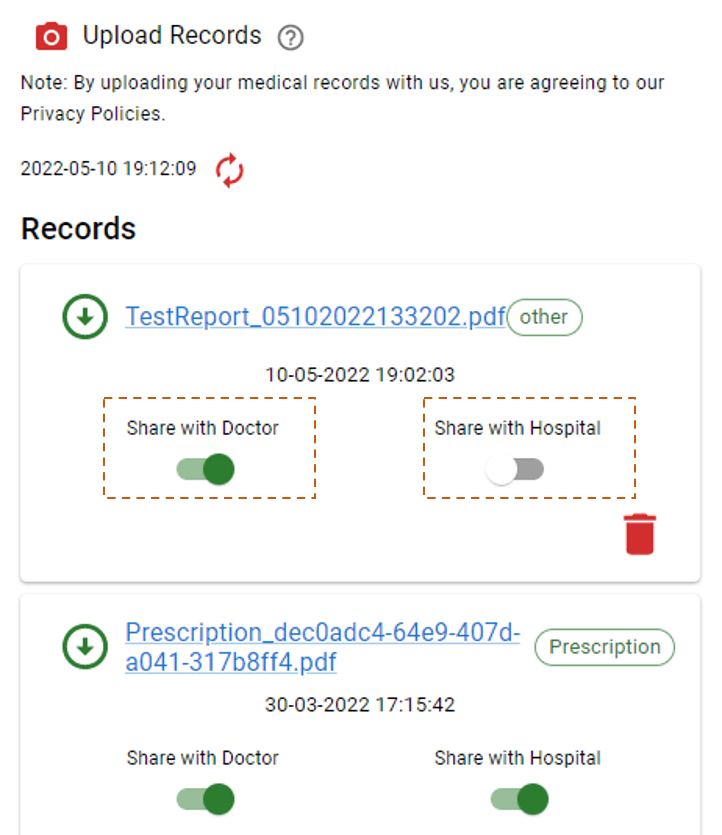
To upload a medical record you can click on  “Upload Records” button. If you are using mobile phone, you can take picture of your Medical Records and upload directly. In case you want to chose a file from your folder, you can click on particular file and it will upload directly to your medical records.
How can I see list of all medical records uploaded by me?
You can click on Refresh button to load list of your medical records.
How can view/download a medical record?
You can click on Download  button or click on the File Name (Medical Record) to download and view the file. (Please note, you need to have relevant application on your phone or computer to view the file format).
How can I change access for my medical records?
You can chose to share your medical records with Doctor or Hospital using “Share with Doctor” and “Share with Hospital” switches. If you switch off these access for any of the medical records, your doctor or hospital will not be able to access the respective file.
How can I remove a medical record?
Click on Bin  to remove the medical record file from your records. Please note, once a medical record/file removed from your records, it gets permanently deleted from our database.
My Receipts
“My Receipts” section/tab includes all the receipts of the successful booking made through Care Portal.
How can I view the receipts/invoices of the bookings I have done?
You can see the receipts of all the transactions done by you on Care portal in “My Receipts” section/tab. In case no receipt is displayed, please click on Refresh icon to load all the receipts.
How can I print/download a receipt/invoice?
To view the receipt details click on “SHOW RECEIPT”, it will open window with receipt details. You can click on print icon to print the receipt.

My Monitor
“My Monitor” section/tab helps you to manage your Bio-Markers or critical body parameters like Heart Rate, Body Temperature, Blood Pressure, SPO2 etc. This helps doctor see the trend of your Bio Markers and understand your condition better.
How can I save or record my Bio-Markers?
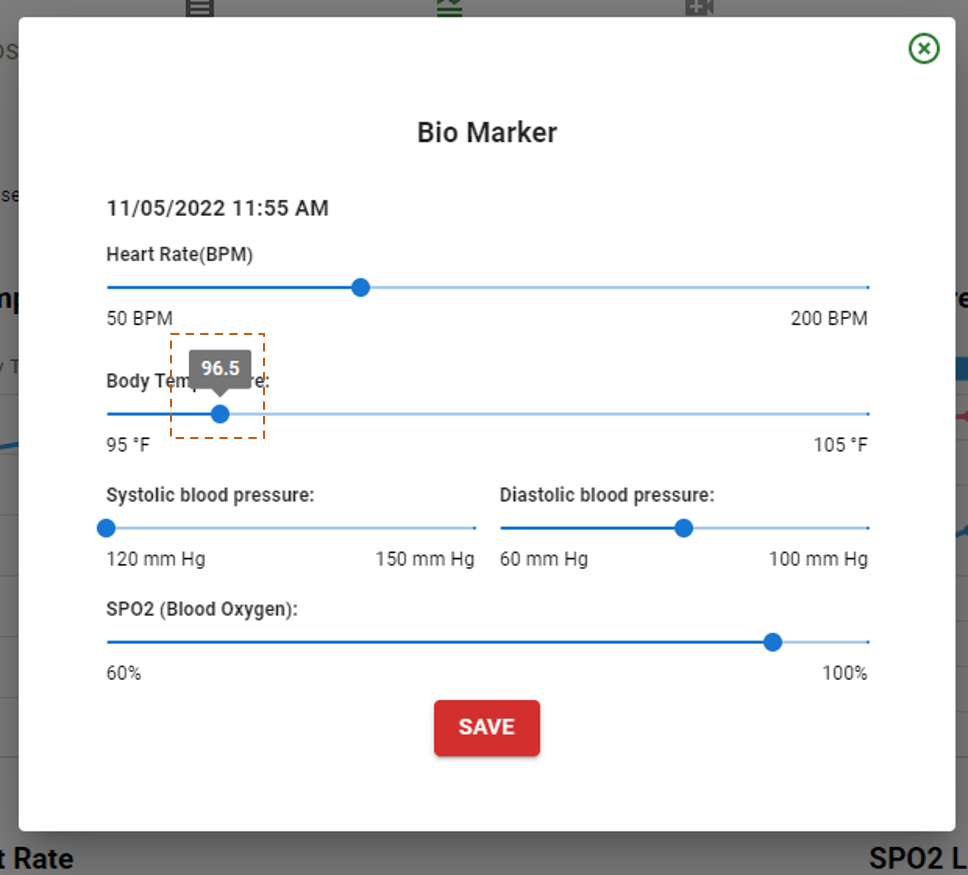
Click on Health Monitor  icon to open Health Monitor Tracker interface. Using different sliders in the tracker you can record your current Bio-Markers. For example, if your current body temperature (measured by standard thermometer) is 96.5 * F, you can slide Body Temperature slider to 96.5 temperature and then click on “Save”. This will create a record for current point in time with your body temperature. Over time as you keep recording your health parameters, it will create a trend, which can help doctor to make a better diagnosis for you.
When should I record my Bio-Markers?
You can save/record your Bio-Markers any number of times throughout the day. It is recommended that you regularly check your health and record Bio-Markers at least once on daily basis.
How Bio-Markers trend will help in my diagnosis?
Bio-Markers trend helps doctor understand patterns of your critical health parameters. It can help doctor detect any outliers and can help him making informed decision about your health, resulting in better diagnosis and cure.
How I can refresh my Bio-Marker charts?
You can click on Refresh button to pull the latest data for your Bio-Markers charts.
My Profile
How can I update my profile details?
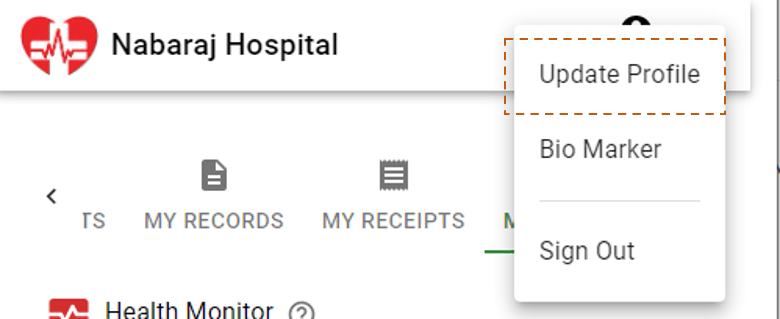
Click on User icon beside your name, to open menu and then select “Update Profile” option.
Why profile details needs to be filled before appointment booking?
A patient’s basic information like Name, Age, Gender are required for Doctor’s consultation. Hence, it is mandated that these details are provided before appointment booking.
 Health insights