
Find answers to common queries or know different functionalities
MY APPOINTMENTS
How can I see my consultation appointments?
You can see all your Past (10 Days) and Upcoming appointments in “My Appointments” tab.

How can I see any newly booked appointments?
You can click on Refresh  button to fetch any newly booked appointment by a Patient. If the message shows “No Appointment Found”, this means there are no upcoming appointments.
How can I attend an Online (Video) call?
Before 5 minutes of the appointment time, “Join” button on Patient Card will become active. Once you click on “Join” button you will be taken to a screen where patient will connect with you for the consultation. Please note patient can join the video call, only once doctor started the call by clicking Join button.
How can I join the Online (Video) call again if the call gets interrupted in between?
The Video call can be joined back again, by clicking the “Join” button on the appointment card in “My Appointments” tab. Please note, Join button will be active only for the duration of the appointment slot. So, you can not join the video call again, if the slot duration is over for particular appointment.
How can I create prescription for In-Person/Offline appointments?
Prescriptions can be created for both Online and In-Person appointments. In case of In-Person appointments, you can still click on “Join” button on appointment card to open Appointment dashboard, where you can draft and submit the prescription for a patient.
How can I edit the prescription after the appointment?
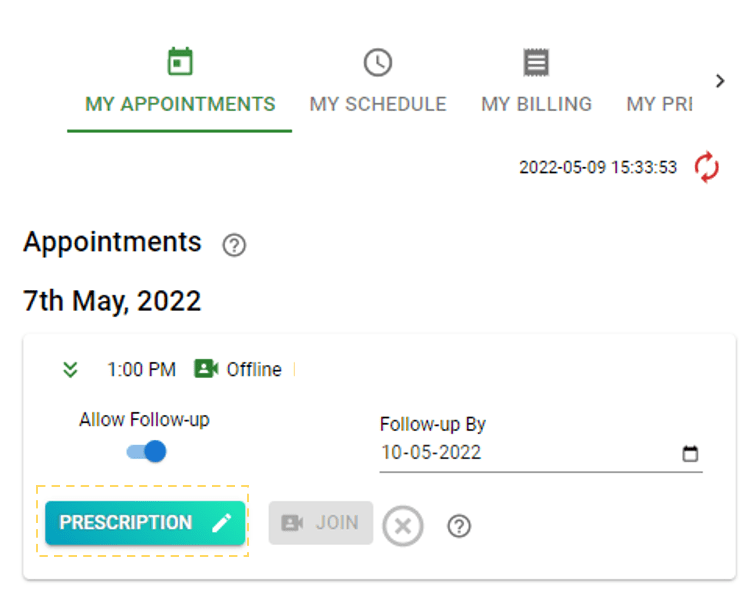
Prescription can be edited during and after the appointment. Once appointment slot duration is completed, prescription can be edited by clicking on edit Prescription button available on appointment card.
How can I draft or create prescription for patient and share with patient?
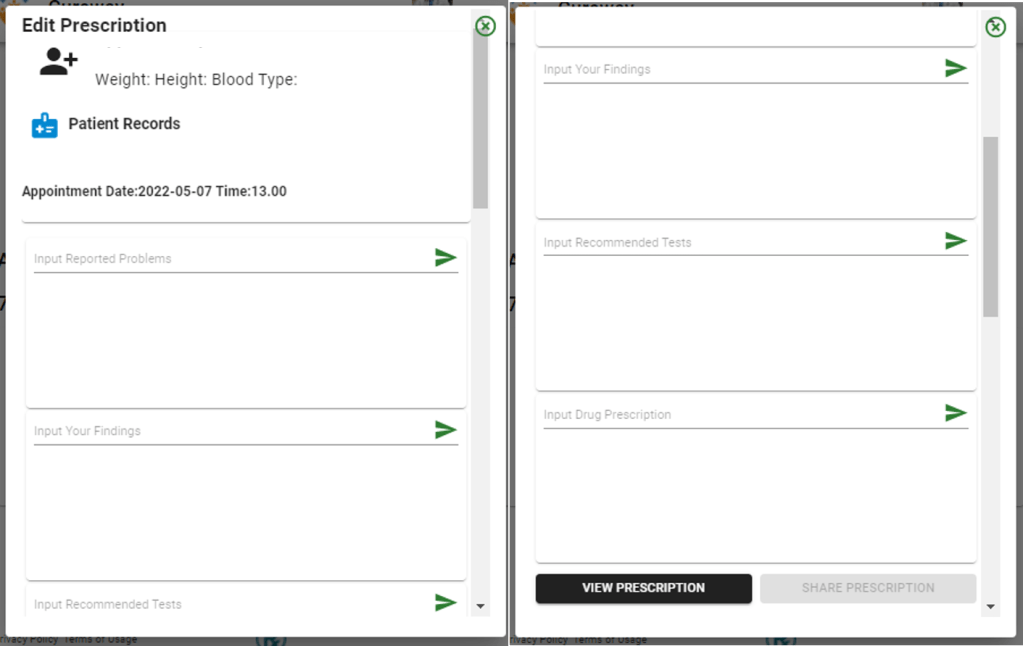
Prescription can be drafted & submitted during the consultation or after the consultation. During the consultation, you can click “Join” button to open appointment dashboard, and edit prescription . After the consultation, the same interface can be accessed through edit “Prescription” button.
Following are the steps to drafting prescription and share it with patient:
- In Edit Prescription interface, start by validating patient demographic information to ensure, you are meeting with correct patient.
- Start typing problems reported by patient in “Input Reported Problems”, the input is powered by Smart Search feature, you can select the relevant reported problem or type on your own. Hit enter or click on arrow button to add input to the list. You can edit the entered text by clicking on it, or delete it by clicking on cross.
- Start typing your diagnosis or patients symptoms in “Input your Findings”, once again you can select relevant diagnosis option for quickly adding to the list.
- Start typing any recommended tests for patient in “Input Recommended Tests”, in case if there are no tests to be recommended for Patient. You can either leave it blank or enter “NA”.
- Start typing prescription in “Input Drug Prescription” input, select the relevant prescribed drug (as applicable). To enter the dosage details, click on particular list item and edit it. For example, once you have added “EROMYCIN 500 MG TAB” in the list; click on it, and then add the dosage like: “EROMYCIN 500 MG TAB 2 Times Daily for 5 Days”
- Once you are satisfied with your inputs, you can click on “View Prescription”, this will generate a Prescription in PDF format with your digital signatures. You can download this file and review the details before submitting the prescription to patient.
- Once you have reviewed the drafted prescription, you can click “Share Prescription”, this will submit the prescription to your patient and mark the appointment Completed. At this point patient will be notified by SMS and Email that his prescription has been submitted by you.
- You can still edit the prescription from the appointment card and share with patient again.
How do I allow patient to book follow-up appointment with me?
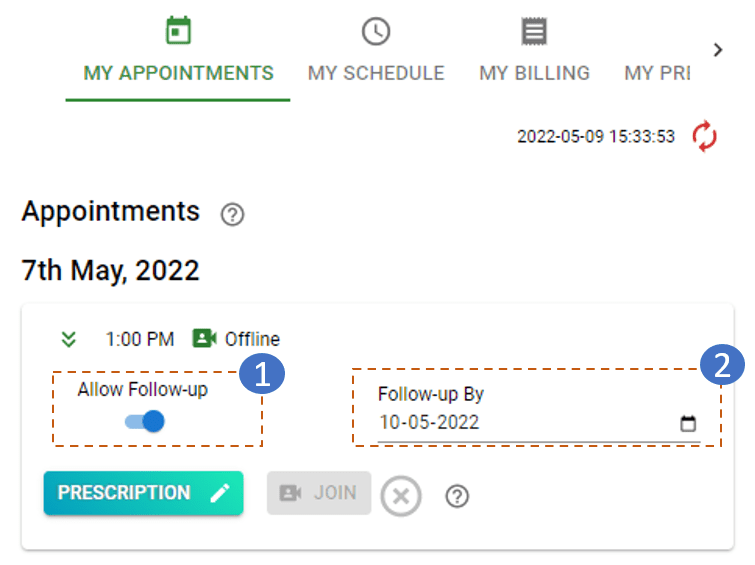
You can allow one Free of Cost follow up appointment for patient in any medium (In-Person or Online). By default, patient can not book follow up appointment for the consultation they had. To allow patient to book follow up meeting against an appointment, follow following steps:
- Switch on “Allow Follow-up” button
- By default “Follow-up By” will be the date 72 Hrs. after appointment date, however you can chose another date from date picker to allow patient book a follow-up appointment.
MY SCHEDULE
How can I update my schedule for a particular Day?
- Go to “My Schedule” tab
- Select “Appointment Type”, you wish to change schedule for. You can have different schedule for In-Person (at Facility) and Online (Tele/Video) consultation
- Select “Date” for which you would like to change schedule for.
- Finally chose either “Declare Off” to make the day blocked for any bookings or change your schedule – “Start Time”, “End Time” and Consultation “Slot Duration”
- At the end click on “Save” to save the changes to your day’s schedule

How can I update my running daily schedule or recurring calendar?
- Go to “My Schedule” tab
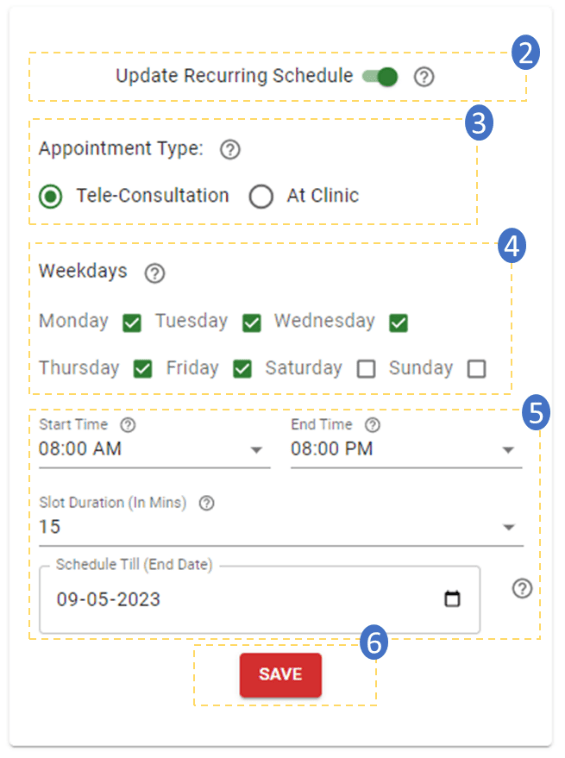
- Switch on “Update Recurring Schedule” to update the running calendar till an End date.
- Select “Appointment Type”, you wish to change schedule for. You can have different schedule for In-Person (at Facility) and Online (Tele/Video) consultation
- Select (Check) the “Weekdays” you wish to schedule the calendar for.
- Create a running schedule by choosing “Start Time” and “End Time” for your daily booking slots. Chose slot durations (in Minutes), to break down the slots for calendar booking. Finally chose either “Schedule Till (End Date)” till when you wish to have the running schedule. By default, this date will be defaulted to 1 year from current date.
- At the end click on “Save” to save the changes to your day’s schedule
MY BILLING
How can I see the trend of appointments booked with me and billing/collection made?
Go to “My Billing” tab to see the trend of appointments booked and collections made day-wise. Hover over particular marker to see the details of particular day’s collection or appointments.
MY PRESCRIPTIONS
How can I see prescriptions I have submitted for my patients?
You can view list of all the prescriptions you have submitted along with patient details on “My Prescription” tab. Click on “Download”, if you wish to view the prescription for particular appointment.
MY PROFILE
How can I update my details like specialization, qualifications etc.?
You can update your details by clicking on your display profile and selecting “Update Profile”. Alternatively, you can request your Facility Admin to change the details using Provider Portal.
 Health insights